


Author: Barry Roodnat Last reviewed: May 6, 2026
Expert review: Barry Roodnat, founder at We Optimizz, specialising in SEO, GEO and platform migrations across WordPress, Wix Studio, Shopify and Framer.
Most WordPress to Framer migrations look smooth in the design phase and quietly underperform after launch. The new site is faster, cleaner and easier to manage - but organic traffic dips, rankings slip from page one, and the leads that came in every week stop arriving with the same consistency.
The platform is rarely the problem. The migration plan is.
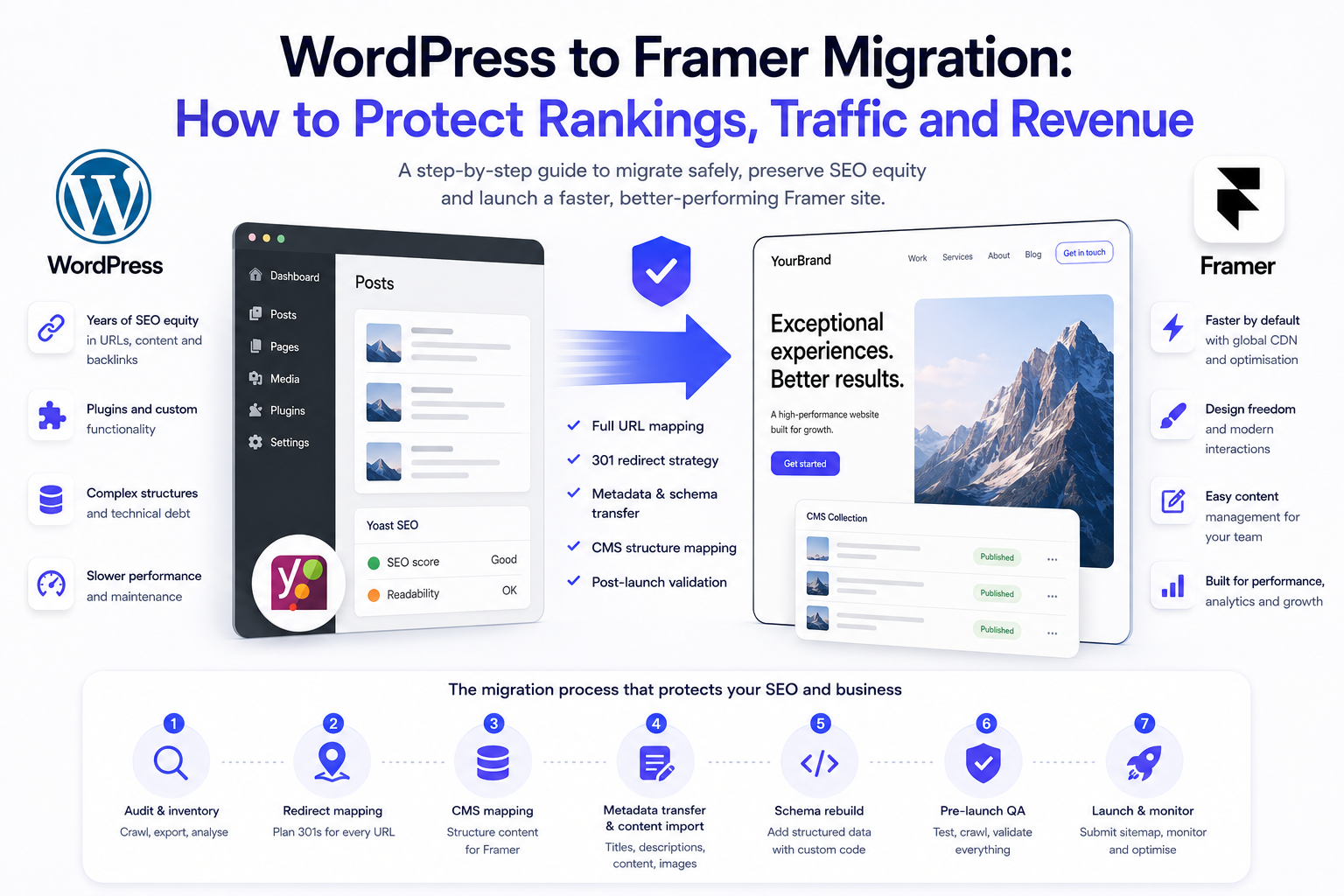
WordPress sites carry years of SEO equity in URLs, internal links, schema, plugin-generated metadata and crawl history. Framer can preserve much of that SEO value when the migration is mapped correctly, but only when redirect mapping, metadata transfer, schema rebuild and post-launch validation are part of the build - not an afterthought.
This guide explains how a WordPress to Framer migration should be executed to protect rankings, traffic and revenue. It also covers what is realistic, what is risky, and where the real cost sits - so you can decide whether to handle it internally or work with a migration specialist.
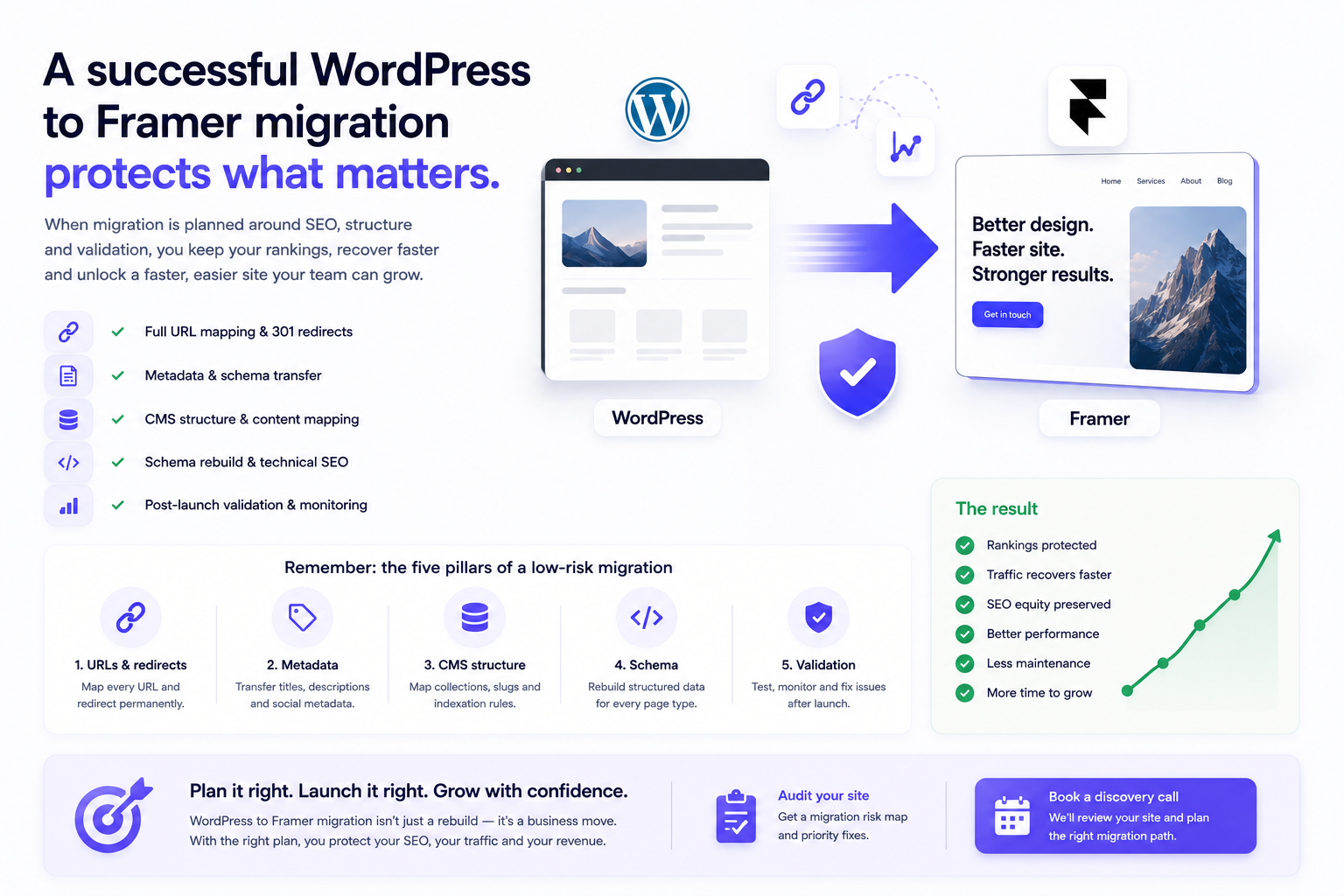
TL;DR: A WordPress to Framer migration becomes much lower-risk when it is planned around five controls: full URL inventory, permanent redirect mapping, metadata and schema transfer, CMS structure mapping, and post-launch validation in Google Search Console. Missing these controls increases the risk of traffic loss, especially on sites with rankings, backlinks or large content libraries.
|
Why businesses migrate from WordPress to Framer
Most WordPress to Framer migrations are not driven by SEO. They are driven by frustration with how WordPress sites age.
The site loads slowly even with caching plugins. Updates break the layout. The page builder is a different tool from what the original developer used. Plugins conflict. Hosting bills creep up. The marketing team cannot edit the homepage without a designer on standby.
Framer can remove many of these operational problems for marketing sites. It handles hosting, image optimisation, CDN delivery and SSL at platform level. Analytics, tracking, forms, CRM integrations, redirects, metadata and schema still need to be configured deliberately. There is no plugin stack to maintain, the editor is the same tool the designer used, and teams are less likely to break layouts during routine content updates.
The trade-off is clear. WordPress gives you depth, ownership and a 42% market share that comes with the largest developer ecosystem of any CMS. Framer gives you speed, design quality and operational simplicity. For marketing sites, SaaS, service businesses and design-led brands, the trade-off often favours Framer. For large editorial sites, WooCommerce stores, multi-author publishing operations or sites that depend on specific WordPress plugins, it does not.
Before you commit to migration, read our Framer vs WordPress comparison and our Framer pricing breakdown to confirm Framer fits your business model long-term.
The real risks of a WordPress to Framer migration
A migration without a plan can create SEO problems immediately after launch. These are the patterns that cause those problems.
Risk 1 - Lost URLs.
WordPress URLs are often deep, plugin-generated, or based on category structures that do not exist in Framer. Without a redirect for every old URL, those pages return 404. Backlinks pointing to 404 pages stop sending users and search engines to a relevant destination, which can waste link equity. Rankings attached to those URLs typically drift downward.
Risk 2 - Metadata loss.
Yoast or Rank Math stores title tags, meta descriptions, canonical tags and Open Graph data in the WordPress database. None of that transfers to Framer automatically. Without a metadata export and manual transfer, every page launches with default values.
Risk 3 - Schema disappearance.
WordPress sites with Yoast, Rank Math or Schema Pro typically generate Article, BlogPosting, Organisation, Breadcrumb and FAQ schema automatically. Framer does not generate JSON-LD schema by default. Every schema block has to be rebuilt manually using custom code.
Risk 4 - Internal link breakage.
WordPress posts often link to other posts using full URLs. After migration, those URLs may exist on a different slug, a different structure, or not at all. Internal links pointing to old URLs send users and crawlers through unnecessary redirects - or to 404 pages.
Risk 5 - CMS structure mismatch.
WordPress uses categories, tags, custom post types and taxonomies. Framer uses CMS collections with a flatter structure. Mapping one to the other requires deciding upfront which content stays, which content gets pruned, and how the new URL structure handles category hierarchies.
Risk 6 - Indexation gaps.
A new Framer site needs sitemap submission, Search Console verification, and robots.txt review. Without those steps, Google may not crawl the new structure for weeks. During that gap, rankings drift.
Anonymized post-launch observation:
In one Framer rebuild we audited after launch(to be clear; we did not do migration it self for this client), the site lost roughly 60% of organic traffic within 30 days. The main issues were 240 unmapped URLs returning 404, missing Article schema on blog posts, and a robots.txt rule blocking the blog directory. This is not a universal benchmark; it is an example of what can happen when migration controls are skipped. The fixes took two weeks. The traffic took six months to recover.
If you are planning a migration, our Framer redirects guide covers the redirect setup specifically. This guide focuses on the full migration process.
Planning a WordPress to Framer migration? We audit your current URL structure, metadata, schema, CMS setup, plugin dependencies and redirect risk before the rebuild starts. You receive a migration risk map with priority fixes before launch.
|
Step 1 - WordPress to Framer SEO migration audit (week 1)
A migration plan starts with knowing exactly what you are migrating. Do this before anyone touches a Framer canvas.
Crawl the entire WordPress site. Use Screaming Frog, Sitebulb or Ahrefs Site Audit to export every URL, status code, title tag, meta description, H1, canonical tag and word count. This becomes your migration map.
Pull Google Search Console data. Export the last 16 months of performance data: queries, pages, clicks, impressions, average position. Identify the top 20% of pages driving the top 80% of traffic. These are the pages that must migrate cleanly. Their URLs, metadata and content carry the SEO equity that is hardest to rebuild.
Audit backlinks. Use Ahrefs, Semrush or Majestic to export every page that has external backlinks. These pages must keep their URL or have a permanent redirect. Losing a backlinked page without a redirect is the single fastest way to lose link equity.
Inventory schema. Open the page source on your top 10 pages and search for application/ld+json. Document every schema type present - BlogPosting, Article, Organization, Breadcrumb, FAQ, Product, Service. Each of these will need to be rebuilt in Framer using custom code.
Document plugin functionality. List every WordPress plugin and the function it serves: contact forms, booking systems, membership areas, search filters, related posts, comment systems, lead capture forms. For each, decide what replaces it in Framer - native Framer feature, third-party embed, or removal.
Define the URL strategy. Decide whether the new Framer site will preserve the existing URL structure exactly, or restructure during migration. Preserving URLs is safer. Restructuring is sometimes justified for SEO reasons but always increases redirect complexity.
The deliverable from week 1 is a migration spreadsheet with one row per URL, columns for current metadata, schema, backlinks, traffic, planned new URL and redirect type.
Step 2 - WordPress to Framer redirects and URL mapping (week 2)
This is the technical core of the migration. Every old URL needs a destination.
Map every URL one-to-one. For each WordPress URL in your inventory, define exactly one new Framer URL. Avoid one-to-many mapping (one old URL pointing to multiple new pages) - search engines can only follow a single redirect target.
Use permanent redirects, not temporary redirects. In SEO planning this is often called a 301 redirect map, while some platforms implement permanent redirects as 308s. The important point is that the redirect is permanent, direct and points to the most relevant replacement URL. Google treats permanent redirects as canonicalisation signals, helping consolidate ranking signals to the new URL (Google Search Central).
Avoid redirect chains. If page A redirects to page B and page B redirects to page C, you have a chain. Chains lose efficiency and crawl budget at every hop. Map every old URL directly to its final destination.
Plan for orphan content. Some WordPress URLs may have no equivalent in the new site - old blog posts that are being pruned, plugin-generated archive pages, tag pages that no longer make sense. Decide for each whether to redirect to the most relevant new page, redirect to the homepage as a last resort, or return a clean 410 (gone) status.
Configure redirects in Framer. Framer supports redirects natively in project settings. For larger redirect lists, the Advanced Hosting add-on supports more sophisticated redirect logic, including capture groups and advanced routing for dynamic paths like /blog/:slug. For sites with hundreds of redirects, this matters.
Test every redirect before launch. Use a redirect checker tool to confirm every old URL returns a permanent redirect to the correct new URL. Manual spot-checking is not enough - automate it.
Step 3 - WordPress to Framer CMS mapping (week 2–3)
WordPress and Framer handle structured content differently. Migration is the moment to plan the new structure deliberately.
Map post types to collections. WordPress posts become a Framer blog collection. Custom post types - case studies, team members, services, testimonials - each become their own collection. WordPress pages remain as Framer static pages.
Verify Framer plan limits. Framer's CMS limits depend on the current site plan and can change over time. Verify collection, item and localisation limits on Framer's pricing page before deciding whether your WordPress content model fits. If your WordPress site has many custom post types, audit which are essential and which can be merged.
Define slug strategy. WordPress auto-generates slugs from post titles. Framer does the same, but the auto-generated slugs are often too long. Define slug formats per collection in advance - short, keyword-targeted, lowercase, hyphenated.
Set up SEO fields per collection. Add a "SEO Title" plain text field and "SEO Description" plain text field to every collection. Connect these to page metadata using CMS variables. This is the difference between a CMS that scales SEO and one that produces hundreds of pages with default metadata.
Plan canonical and indexation rules. WordPress archives such as author, tag and date archives are often noindexed, redirected or removed during migration depending on traffic, backlinks and topical value. Decide which collections should be indexed and which should not. Configure these intentionally rather than letting Framer apply defaults.
For deeper CMS configuration, see our Framer CMS for business websites guide, which covers the full CMS setup process.
Step 4 - Content migration and metadata transfer (week 3–4)
With structure mapped, content moves next.
Export WordPress content. Use the WordPress XML export, the WP All Export plugin, or a direct database query. Export should include post title, content, slug, publish date, author, categories, tags, featured image and custom fields.
Clean before import. Migration is the right moment to prune. Delete thin content, outdated posts with no traffic, and duplicate content. Update statistics, screenshots, and references. A migration that includes content cleanup outperforms a migration that imports everything as-is.
Import to Framer collections. Framer supports CSV import for collection items. Format your cleaned export as CSV with one row per item and one column per CMS field. Test import with five items before importing the full set.
Transfer metadata explicitly. Yoast and Rank Math metadata sits in WordPress post meta tables. Export this data and map it to the Framer collection's SEO Title and SEO Description fields during import. Default Framer metadata generated from page titles is rarely as well-optimised as metadata that was deliberately written.
Rebuild internal links. WordPress content often contains hardcoded internal links to old URLs. Run a find-and-replace across the imported content to update internal links to the new URL structure. Missing this step creates dozens of soft-broken links that route through redirects.
Migrate images deliberately. Framer's image pipeline can improve performance compared with bloated WordPress media libraries, but only if source images are sized and compressed properly. Avoid uploading 4000px hero images for a 1200px display slot. If your WordPress media library is bloated with oversized files, take this chance to optimise source images.
Step 5 - Schema and structured data rebuild (week 4)
WordPress schema disappears the moment the migration completes. Framer schema must be added by hand.
Identify required schema types. From your pre-migration audit, list every schema type your old site generated. Common types include BlogPosting (blog posts), Article (longform), Organization (homepage), Breadcrumb (navigation), FAQ (Q&A blocks), Product (e-commerce), Service (service pages) and Person (author bios).
Add schema via Framer custom code. Framer supports JSON-LD injection through the page custom code panel. Use CMS variables in schema templates so collection pages get unique schema per item without manual work per page.
Validate every schema block. Use Schema.org validator and Google's Rich Results Test on at least five pages of each type. Errors in schema do not just fail to enhance results - they can cause Google to ignore the schema entirely.
Maintain schema-content alignment. Schema must match the visible content on the page. FAQ schema with questions that are not visible on the page violates Google's structured data guidelines and can result in manual penalties.
For the full schema setup process specific to Framer, see our Framer structured data guide.
Step 6 - Pre-launch validation (week 5)
Before pointing DNS to Framer, validate everything on staging.
Crawl the staging site. Run a full Screaming Frog crawl on the Framer staging URL. Compare the URL inventory, metadata, and indexation rules against the migration plan. Every URL should be present, every metadata field populated, every canonical correct.
Check Core Web Vitals. Run PageSpeed Insights on five representative pages. Framer typically delivers strong CWV out of the box, but oversized images, third-party scripts and excessive animations can still cause regressions.
Verify redirect rules. Run an automated redirect check across every URL in your inventory. Every old URL must either return a permanent redirect to the correct new URL or a deliberate 410 for removed content.
Test forms and integrations. Every form, booking widget, payment integration and analytics tracker must be re-tested in Framer. The fact that the form worked on WordPress does not mean its replacement on Framer captures leads correctly.
Confirm robots.txt and sitemap. Check that robots.txt is not blocking critical directories, that the sitemap is generated correctly, and that the sitemap URL is accessible.
Step 7 - Launch and post-launch validation (week 6 and beyond)
Launch is not the end of the migration. The first 14 days after launch are where most issues surface.
Submit the new sitemap to Google Search Console. Add or verify the site in Search Console after launch and submit the new sitemap. This signals the new structure to Google and starts the recrawl.
Monitor the Pages indexing report daily for 14 days. Watch the Pages indexing report in Google Search Console. Look for spikes in 404 errors (missed redirects), soft 404s (thin pages), redirect chains, and noindex tags applied incorrectly.
Monitor 404s. Track 404s through Search Console, analytics, redirect reports or server logs where available. Any URL that returns a 404 and is being requested by Googlebot or users is a missed redirect. Add it immediately.
Track ranking and traffic deltas. Compare organic traffic and keyword rankings against the same period last year and the four weeks before launch. Some short-term volatility is normal during migration. Sustained drops beyond four weeks indicate unresolved issues.
Re-validate schema after launch. Schema can break during launch if custom code is reformatted or CMS variables fail to populate. Re-run rich results tests on at least five live pages of each type.
Check internal linking. Use Search Console's Links report to confirm internal link structure looks correct. Pages with zero internal links (orphans) should have at least one inbound link from a relevant page.
If you want to see the specific SEO issues on your current WordPress site before migration starts, our free SEO scan covers the diagnostic baseline. For full migration support, the SEO and GEO service includes pre-migration audits, redirect planning and post-launch validation.
WordPress to Framer migration: which sites fit, which do not
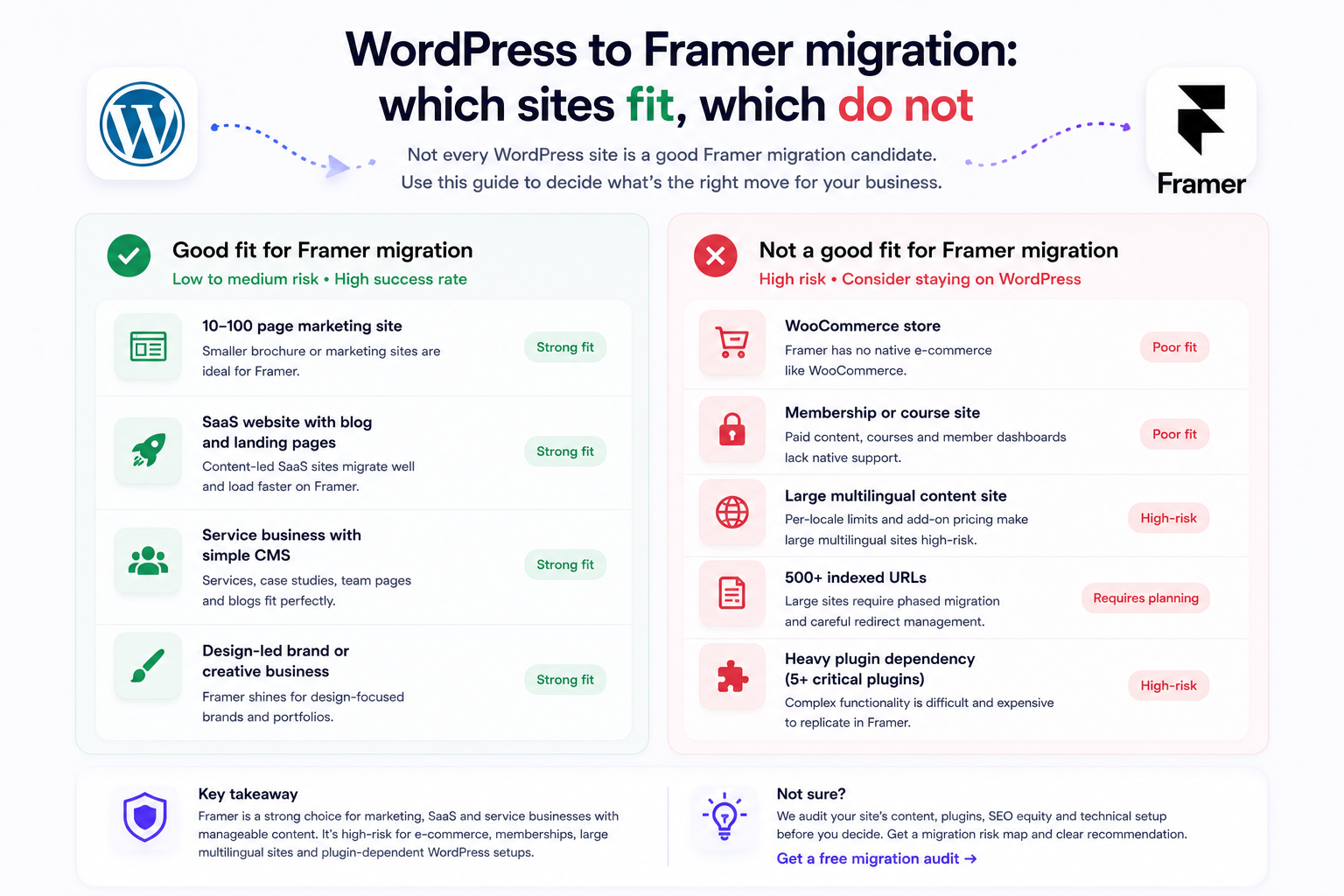
Not every WordPress site is a good Framer migration candidate. Use the table below as a quick read on whether your site profile fits.
Migration profile | Framer fit |
10–100 page marketing site | Strong fit |
SaaS website with blog and landing pages | Strong fit |
Service business with simple CMS | Strong fit |
Design-led brand or creative business | Strong fit |
WooCommerce store | Poor fit |
Membership or course site | Poor fit |
Large multilingual content site | High-risk |
500+ indexed URLs | Requires phased migration |
Heavy plugin dependency (5+ critical plugins) | High-risk |
When NOT to migrate from WordPress to Framer
Migration is the wrong choice when Framer would remove functionality the business still needs. These are the patterns where Framer creates more problems than it solves.
Active WooCommerce store. Framer does not have a native e-commerce equivalent to WooCommerce. Migrating an active store means rebuilding checkout, payments, inventory, customer accounts and order management. For most stores, this is a Shopify migration question, not a Framer one.
Membership or course site. WordPress with MemberPress, LearnDash or similar plugins handles paid content gating, course progress and member dashboards. Framer does not have a native equivalent. Migration breaks the entire member experience.
Large multi-author editorial operation. WordPress's author roles, editorial workflows, scheduling and revision history are deeper than Framer's CMS controls. Sites with five or more active authors and structured editorial calendars are usually better served by staying on WordPress.
Multilingual sites with deep localisation. Framer supports localisation, but per-locale add-on pricing and word count limits make large multilingual sites expensive to operate at scale. WordPress with WPML or Polylang remains more economical for sites with five or more languages and high content volume per locale. See our Framer multilingual SEO guide for the trade-offs.
Heavy plugin dependency. If your business logic depends on five or more critical plugins - booking systems, CRM integrations, custom search filters, accounting integrations, custom post type relationships - replicating that stack in Framer typically requires custom development that erases the operational simplicity argument for switching.
Site with 500+ indexed pages. In practice, each extra URL can create redirect, metadata, schema and internal-link work. Sites with thousands of pages can migrate to Framer, but redirect maintenance, CMS plan limits and schema rebuild costs grow faster than the operational benefit. For larger sites, a phased migration using Framer's page-by-page Multi Site approach is often safer than a single-cutover launch.
If any of these patterns apply, the right answer is often to stay on WordPress and improve what you have. A platform-neutral discovery call can confirm whether migration makes sense in your specific case.
WordPress to Framer migration timeline and cost expectations
Migration scope drives both timeline and cost. The patterns we see in agency work fall into three brackets.
Small site (under 25 pages, no blog or under 25 posts). Roughly 3–4 weeks end-to-end. Most of the time goes into design rebuild and metadata transfer rather than redirect mapping or CMS structure.
Mid-sized site (25–100 pages, 50–200 blog posts, custom post types). Roughly 6–10 weeks. Redirect mapping, CMS structure planning and schema rebuild become significant work blocks. Pre-migration audit becomes critical.
Large site (200+ pages, hundreds of blog posts, multilingual, complex plugin stack). Three months or more, often phased. Page-by-page migration using Framer's Advanced Hosting Multi Site rules reduces risk by allowing the new and old sites to coexist during the transition.
Cost varies by agency, site complexity and scope of additional work like content rewrites or new design. A migration that includes pre-audit, redirect mapping, schema rebuild, CMS setup and post-launch validation is meaningfully different from a "design rebuild" that ignores SEO infrastructure. Be specific about scope when comparing quotes.
WordPress to Framer migration checklist
Pre-migration
Full URL inventory exported from Screaming Frog or equivalent
Search Console performance data exported (16 months)
Backlink audit complete with high-equity pages flagged
Schema types documented per page type
Plugin functionality mapped to Framer or third-party replacements
URL strategy decided (preserve vs restructure)
During migration
Permanent redirect map covering every old URL
CMS collection structure planned with SEO fields built in
Slug strategy defined per collection
Content cleaned and pruned before import
Metadata transferred from Yoast/Rank Math to Framer SEO fields
Internal links updated to new URL structure
Schema rebuilt for every page type using custom code
Pre-launch
Staging site crawled and validated
Core Web Vitals checked on representative pages
Redirect rules tested across full URL inventory
Forms, integrations, analytics retested
Robots.txt and sitemap verified
Post-launch (first 14 days)
Sitemap submitted to Google Search Console
Pages indexing report monitored daily
404 hits checked through Search Console, analytics, redirect reports or server logs where available
Ranking and traffic compared to baseline
Schema re-validated on live pages
Internal linking confirmed via Search Console Links report
Want this checklist applied to your site? We audit your WordPress URLs, metadata, schema, CMS structure, plugins and redirect risk before the Framer rebuild starts. You receive a migration risk map, redirect priorities and launch QA checklist. Get a WordPress to Framer migration audit
Frequently asked questions
Will I lose SEO traffic when I migrate from WordPress to Framer?
Not necessarily. Traffic loss usually happens when URLs are not redirected, metadata is not transferred, schema is not rebuilt, or post-launch validation is skipped. Some migrations stabilise within weeks; larger or more complex migrations can take longer. Recovery timing depends on crawl frequency, redirect accuracy, backlink profile, content changes, internal linking and unresolved launch issues.
How long does a WordPress to Framer migration take?
Small sites under 25 pages typically take 3–4 weeks. Mid-sized sites with 50–200 blog posts take 6–10 weeks. Large sites with custom post types, multilingual content or plugin-heavy functionality take three months or more.
How much does a WordPress to Framer migration cost?
Cost depends on page count, CMS complexity, redirect volume, schema rebuild, content cleanup and post-launch QA. A small marketing site is very different from a WordPress site with hundreds of URLs, custom post types or multilingual content.
Is WordPress to Framer migration worth it?
It is worth it when the site is design-led, content volume is manageable and the business wants less technical maintenance. It is not worth it when WooCommerce, memberships, complex plugins or large editorial workflows are central.
Can I keep the same URLs when moving from WordPress to Framer?
Yes, in many cases. Keeping URLs is usually safer than restructuring. If URLs change, each old URL needs a permanent redirect to the most relevant new Framer URL.
Can I migrate WordPress pages and posts into Framer automatically?
Some content can be exported from WordPress and imported into Framer CMS via CSV, but metadata, schema, internal links, images and plugin-generated content usually require manual mapping and QA. There is no fully automatic WordPress to Framer migration tool that preserves SEO equity end-to-end.
Can I migrate my WordPress blog to Framer's CMS?
Yes. WordPress posts map to Framer collection items. The migration involves exporting WordPress content, cleaning it, importing to a Framer collection, transferring metadata, and rebuilding internal links and schema. Plan for content pruning during this step rather than importing everything as-is.
Do I need a redirect map for every WordPress URL?
Yes. Every indexed, linked or traffic-driving WordPress URL should have a planned destination: a matching Framer URL, the closest relevant replacement, or a deliberate 410 for removed content. Skipping important URLs in the redirect map is one of the most common causes of post-migration traffic loss.
Does Framer support WooCommerce?
No. Framer does not have a native e-commerce platform comparable to WooCommerce. If you have an active WooCommerce store, the right migration target is usually Shopify rather than Framer. Framer can host marketing pages while Shopify handles store functionality, but a full migration of WooCommerce to Framer is not realistic for most stores.
How do I handle WordPress plugin functionality in Framer?
Plugin by plugin. Contact forms map to Framer's native form components or third-party embeds like Tally. Booking systems use embeds from Calendly or Cal.com. Search filters require custom solutions. Membership functionality typically does not have a Framer equivalent - if you depend on it, do not migrate.
What about my Yoast or Rank Math settings?
Yoast and Rank Math metadata is stored in the WordPress database. It does not transfer automatically. You export the metadata, then map it manually to Framer's SEO Title and SEO Description fields per page or collection item during import. Schema generated by these plugins must be rebuilt using Framer custom code
Should I redirect everything to the homepage if I cannot find an equivalent page?
Only as a last resort, and only for low-traffic pages. Redirecting unrelated URLs to the homepage can be treated as a soft 404 by Google and provides limited SEO benefit. The better approach is to redirect to the most topically relevant new page, or return a clean 410 (gone) for content that has been intentionally removed.
Is Framer better than WordPress after migration?
Framer is better for design-led marketing sites that need less technical maintenance. WordPress remains better for WooCommerce, large publishing operations, memberships, custom post types and plugin-dependent functionality. The right answer depends on your business model, not the platform's general reputation.
Can I keep my domain authority during migration?
Domain authority itself is a third-party metric, not a Google ranking factor. What you preserve during migration is the link equity attached to specific URLs - and that requires permanent redirects from every old URL to its new destination. Done correctly, you preserve link equity. Done incorrectly, you lose it.
How We Optimizz handles WordPress to Framer migrations
Across hundreds of website projects, we have seen that migrations fail less often because of the platform and more often because redirects, metadata, schema or validation were skipped. In most failed migrations we audit, the traffic loss is not caused by Framer itself but by missing controls: redirects, metadata, schema, indexation or internal links.
When migration is part of a project we run, it follows the process above - pre-audit, redirect mapping, CMS structure, metadata transfer, schema rebuild, pre-launch validation, post-launch monitoring. None of these steps is optional if the goal is to protect rankings and revenue through the cutover.
Migration is also the moment to rebuild GEO and AI-search readiness. Framer can provide a clean technical foundation, but visibility in AI search depends on indexable content, clear entities, structured data, source-worthy passages, internal links and topical authority. See our SEO and GEO service for how this fits into the migration scope.
If you are evaluating a WordPress to Framer move and want to know whether the migration is realistic for your site before committing, the free SEO scan covers the diagnostic baseline. For a scoped WordPress to Framer migration service or pre-launch audit, book a discovery call and we will review your current site, your migration goals, and what a realistic timeline looks like.

Founder of We Optimizz, helping businesses get found in Google and AI search across 35+ countries. Wix Legends Partner with 894+ websites built and one of the first GEO agencies in Europe.